

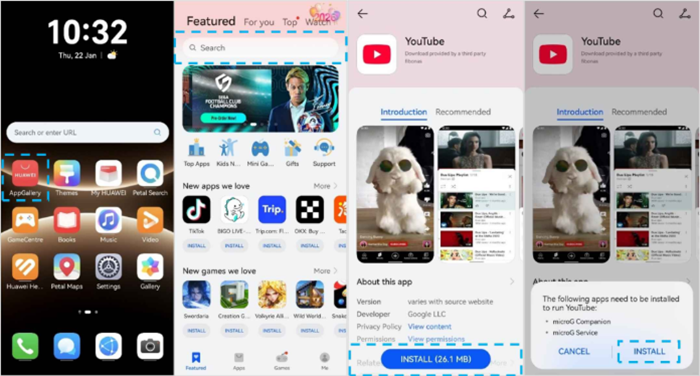
The most useful line in Huawei’s Google-app guide is also the simplest: always search AppGallery first. That rule prevents the setup from becoming more complicated than it needs to be. If the app is already available, install it there. Only move to another route when AppGallery does not have what you need.
Google apps can start in AppGallery too
Huawei uses YouTube to demonstrate the process. Open AppGallery, search for YouTube, and tap Get. During installation, a prompt appears saying additional apps are required to run YouTube. Tap Install.
The phone then installs microG Companion and microG Service automatically. That means the first Google app can still begin from AppGallery rather than from a separate store.
microG handles the Google account step
After YouTube is installed, open it and tap Sign in. The app redirects you to microG Services. Tap SIGN IN again, and the normal Google sign-in interface appears.
Enter your account details and continue. For users who arrive at the huawei google play store question expecting Google Play to be the first step, this flow shows why Huawei tells people to begin with AppGallery instead.
GBox is the second route, not the first
If AppGallery does not have the app, install GBox from AppGallery. Sign in to GBox and you are redirected to Google Play inside its environment. Search for the missing app there and install it.
Huawei uses Netflix to show this second route. The two-step logic is easy to remember: AppGallery first, GBox only when necessary.
Why the AppGallery-first rule helps
Starting in AppGallery keeps the process predictable because it tells you whether the app can be installed directly or whether another route is needed. If YouTube is available, the phone can install the required microG components as part of that flow. If another app is missing, GBox becomes the next step.
That means the user does not have to decide in advance whether an app needs microG or GBox. The sequence itself answers the question. Search AppGallery, follow the prompt that appears, and only move to GBox when the app is not there.
The same rule also helps later when installing something new. Instead of remembering a different procedure for every app, you repeat the same first step and let the result determine what happens next.
Why this order matters later
Using the original source makes updates easier to understand. AppGallery updates are found under Me > Update. If the store shows a prompt about updates from third-party sources, tap Update.
Apps downloaded through GBox update automatically in batches, so they do not follow exactly the same maintenance path.
Do not delete the supporting services
Huawei also warns users not to uninstall GBox, microG Companion, or microG Service. microG supports Google sign-in and background services, while GBox is the gateway for apps obtained through Google Play inside GBox.
Deleting these components can interfere with apps that already appear to be working normally.
A simple rule for every new app
The huawei google play store process can be reduced to one habit: open AppGallery first. Install directly when possible. Let microG install when a Google app needs it. If AppGallery does not offer the app, use GBox.
That is simpler than starting every search from a third-party installer and makes the phone easier to maintain over time.